Showing posts with label Iphone. Show all posts

Saturday, February 14, 2015

How To Create Your Own Extensions For Your iPhone & iPad


For years, iOS was so tightly locked down that apps couldn’t communicate with each other. Simple actions such as uploading a picture to Instagram or sharing it to WhatsApp were not possible from the Photos app. Thanks to iOS 8, those days are now gone.
You can now share content between apps with just two taps. The only problem? Developers have to create extensions and these aren’t always top priority for them. The aforementioned WhatsApp and Instagram still don’t have share extensions, which is a major inconvenience.
Fortunately there exists a new app that allows you to finally create your own extensions. Meet Workflow ($1.99), a productivity app that opens many of the platform’s previously closed doors.

What Does Workflow Do?

Workflow is an automation app that focuses on speeding up complex tasks on iOS. It lets you make GIF images, create PDF files, resize images and perform many other tasks quickly. Each of these tasks is called a workflow.
workflow_iOS_my_workflows

You can use the app to create normal workflows and action extensions. Normal workflows are almost like an app because you can pin them to the home screen for easy access. This is just like adding a webpage to the home screen of your iOS device.
On the other hand, action extensions can be accessed by tapping the Share button in other apps and then tapping Run Workflow. This reveals a list of action extensions available thanks to Workflow, allowing you to tap the one you need. It adds an extra tap to the process of accessing extensions, but it keeps Workflow from cluttering your share sheets across the entire operating system.

Creating iOS Extensions

Workflow features a long list of actions that you can link in order to create a workflow. To start, open the app and tap the big tile named Create Workflow. This will show you a blank workspace with two tabs at the top – Normal and Action Extension. Tap Normal to create ‘apps’ or Action Extensions to make your workflow accessible via share sheets (the more menu).


Creating a workflow is easy – first swipe left to see the list of actions Workflow supports. You’ll see things like Quick Look, Get Component of URL and so on. Tapping any of these actions will reveal what it does. When you’ve found the action you need, drag it to the workspace on the right. Drag all the actions you need and arrange them in the correct order. Now you can tap the Play icon at the top to see if your workflow works. If it does, tap Done to save this workflow.
It can be hard to picture this without an example. Let’s create a simple extension that allows us to post pictures to Instagram. These instructions will help you understand how to create a workflow.


  1. Open Workflow and tap Create Workflow.
  2. Tap the tab labelled Action Extension at the top.
  3. Since we only want to post photos to Instagram using this workflow, it’s best to stop this workflow from showing up unless we’re sharing photos. To do this tap the text: “This workflow accepts and uncheck everything except Images. Tap Done.
  4. Tap the wand icon called Actions in the bottom left corner. This will take you to a list of actions sorted by type.
  5. In the search bar, type “Instagram”. This will bring up the Post to Instagram action.
  6. Drag Post to Instagram to the workspace on the right. You’ll notice that it has a field called Caption. Whatever you type here will automatically appear in the caption field in Instagram. If you regularly use the same hashtags, you can type them here to avoid keying them in each time you post a photo.
  7. Tap the tiny gear icon on the top right corner. This is where you can name your workflow and pick an icon for it. I named my workflow “Post Photos To Instagram” and picked a nice camera icon.
  8. Tap Done to finalise the name and icon for the workflow. Tap Done again in the workspace to finish making your first workflow.
Congratulations! You just created a simple, yet incredibly useful workflow. To run this workflow, open the Photos app, select any photo and tap the Share icon followed by Run Workflow. Select Post Photos To Instagram (or whatever you called the workflow) and your device will open the image on the filters screen in Instagram. On the next screen, you’ll find your pre-defined caption as well.
While you’re at it, don’t forget to check our guide to creating your own Instagram filters as well. More complex workflows allow you to convert five photos into a GIF or even cross-post photos across social networks.

Can’t Create Workflows? Download Them Instead

If you find creating workflows tedious you’ll be relieved to know you can opt to download them instead. All you need to do is open the app and tap the Gallery button at the top. This opens a curated list of the best workflows arranged in neat tiles under helpful sub-heads.


To download any of these, select it and then tap Get Workflow. Earlier I linked to a couple of workflows – open these on any device that has Workflow installed and tap Download to start using them.
Select a workflow and hit the Share icon to share it with your friends, who will receive a link to the workflow that they can use to download it. This Share icon also lets you add workflows to the home screen, which turns them into mini-apps. I’ve used Workflow to create several speed dial shortcuts on my home screen and I’m sure you’ll find some workflows useful enough to add them to your home screen.
This ability to share and easily download workflows adds another dimension to the app. It ensures that those who don’t have the time to fiddle with the app’s exhaustive list of actions can hit the ground running.

Save Time & Taps

For an app with such emphasis on sharing, I’d have loved to have the ability to sync workflows across my iOS devices. If you own multiple devices linked to the same Apple ID, you’ll still have to manually add your favourite workflows to each device.


It’s hard to find another app that lets you do so much more with iOS without jailbreaking. Launch Center Pro is one of our favourite automation apps for iOS and its geofencing feature will let you get even more out of Workflow. You’ll be able to trigger certain workflows when you reach the office or when you leave home. Between these two apps, many iOS limitations seem fairly minor. You still can’t access certain system functions such as enabling or disabling Touch ID through these apps, but you can do things like change the device’s brightness level or send a custom notification.
If this sort of thing appeals, you should definitely bookmark the Workflow Subreddit. It is a great place to find new workflows, get help creating workflows or for posting a request for a specific workflow.
Mihir recently wondered whether the Internet is falling out of love with Apple. While his argument about a drop in Apple’s software quality is valid, the other side of the coin is that the Cupertino-based company has added several previously restricted features to iOS. Apps such as Workflow make the platform even more appealing to power users.

Download: Workflow ($4.99) for iPhone & iPad

How To Hold A Successful Conference Call On Your iPhone


Conference calling on your iPhone is basically a single-tap process, but there are other features you should know about to make the process easier to manage.
In the past we’ve covered the many things you can do while talking on the iPhone, but if you want to talk to more than one person it helps to know how to add calls, merge them, and end individual calls without getting confused.
Did you know that with the arrival of iOS 8, Apple even added FaceTime Audio conference calling?

Making Conference Calls

Apple allows for up to five calls to be merged using its conference call feature. While you can certainly dial individual party lines to add them to the conference, you might find it easier to access those numbers in your Contact list, reducing the need to dial the numbers.
To set up the conference, do the following:
1. Call the first person as you normally would. Let the person you call know that you’re going to add other callers.
2. Tap the Add Call button on the iPhone.
iPhone_conferene

3. After the second person answers your call, tap the Merge Calls button. At this point notice that the names of the two callers are listed at the top of the phone. This is another reason to have party lines listed in your Contacts, because you can see their names listed during the calls.
iPhone_merge_calls

4. Repeat steps 2 and 3 for each additional call. After each call is merged, the Add Call button will re-appear. Note, you can also tap on the Contacts button to call and merge another recipient into the conference. At this point, it’s best to tap the Speaker button so you can speak all party lines without holding the phone to your ear.
Note: You may not know it, but you can also make audio phone calls using FaceTime over Wi-Fi and your mobile data plan. FaceTime Audio calls (not video calls) are also compatible with conferencing features, but these calls can only be made with other iPhone or Mac users.
FaceTime_calling

Handling Incoming Calls

You can also accept incoming calls during your conference call. When you receive a call, tap on the Hold & Accept button, and then merge each caller into the conference call. If you don’t want to accept a call, tap the Send to Voicemail button. Pay close attention to the End & Accept button, it will end the connection with all current conference parties.
IPhone_conference-2

If you don’t want to receive calls during your conference call, open the Settings app on your phone, tap Do Not Disturb, and manually enable the feature (also accessible from Control Center, by swiping up from the bottom edge of the phone). This will silence all incoming calls and alerts.
Do not disturb

Talking Privately

During a conference call, you can talk privately with one person during the conference or end a call. To  do this, tap on the blue “i” button on the top-right. This can only be done when all the calls are merged.
IPhone_conference-1

In the next window, all the connected party lines will be listed and you can check which one you want to end or talk privately to. The other party lines will remain on hold.
IPhone_conference-10

Accessing Other Apps

During a conference call, you can actually leave the iPhone app and open other apps. To do this, tap the Speaker button in the phone app then press the Home button on your iPhone. Be careful, of course, not to tap the red phone button, which will end all calls. Now you can open, for example, a notes app or a web browser app to get information while still holding the conference call.
To get back to the phone app, tap the green bar at the top of the phone.
IPhone_conference-4

Mute Yourself

If you’re in a situation where you don’t want other people to hear you during the conference, you can briefly mute yourself, but still hear others talk. Simply tap the Mute button and you’re good to go.
iPhone_Mute

Practice Makes Perfect

You might want to practice the conference call process outlined above with friends or family members, so that you don’t feel clumsy when making that all important business or meeting call.

Let us know how iPhone conference calling works for you. And if you’re new to the iPhone, check out some other iOS 8 features you should know about.

Sunday, February 8, 2015

Which Apple Products Do You Currently Own?


Despite what some of my colleagues believe, Apple fanboyism is alive and well. In fact, it may be stronger than ever, with more people under Apple’s spell now than at any time in its history. The only difference is Apple fanboys (and fangirls) are so numerous, and their mentality so commonplace, that we just don’t notice it any more.
With all of that in mind, we want to find out which Apple products our readers actually own. If any. Welcome to this week’s MakeUseOf Poll.

Love is Complicated

To answer this week’s question please scroll down the page until you see the poll staring back at you. But first, we need to look at the results from two weeks ago, when we asked, “Which Technology Company Do You Love The Most?
Out of a total of 412 votes, 26.9% chose Google, 25.2% chose Microsoft, 13.8% chose Apple, 6.3% chose Mozilla, 4.1% chose Amazon, 1.2% chose Samsung, 1% chose Sony, 0% chose Facebook, 3.4% chose Other, and 18% chose I Don’t ‘Love’ Any Tech Companies.
It was no surprise to see Google top this Poll, as this is a company with a range of products and services, many of which are offered entirely for free. However, I must admit to being a little surprised to see Microsoft beating Apple, and by such a significant margin.
It’s also interesting, and admittedly quite satisfying, to see Facebook come last with a total of zero votes. And yet we all still carry on using Facebook regardless. Why? Because we’re all addicted. Probably.
tech-company-love-poll-results

Comment of the Week

We received a lot of great comments, including those from EgoAnt, Hildy J, and Callum. Comment Of The Week goes to likefunbutnot, who earns our admiration and affection for this comment:
voted for Mozilla. Mozilla is a testament to the open Internet, something that no one else is really supporting these days. Supporting the things that Mozilla wants to do really means being able to build an internet that will function without Microsoft, Google, Facebook and/or Apple, which is as it should be.
I didn’t like its choice of CEO in 2014, but I suspect there aren’t many CEOs whom I would like.
Microsoft’s business seems to be trying to hammer everything into the shape of a desktop computing platform that it can sell Windows and Office on that platform. Microsoft really doesn’t understand the interest of consumer-level computing, mobile devices or entertainment platforms. It just knows business really, really well. It’s where IBM was thirty years ago.
Google, Apple and Facebook all create walled gardens of exclusionary content to no benefit but their own. Samsung wants to be be a lifestyle brand in the mode of Apple and Sony and does indeed make decent, inexpensive hardware. But it has a tin ear building anything (or at least, anything anyone outside of Korea) actually wants and its successes all too often have been due to its willingness to ship dozens or hundreds of products so that a few can find some success.
I do like Amazon. I like what Amazon offers, my Amazon tablet, my prime membership and its ability to be my one stop shop for almost everything that involves shopping. I like that it plays well with others and works with everything. It’s the way a digital services company should be. But I don’t love it because to my mind, it’s just doing the thing that everyone who wants to sell products should be doing.
Sony is so far off the tech radar at this point that I can’t believe it’s being discussed in this context (“Guys! We still make a game box! And TVs? You guys like TVs, right?”). Its decline suggests the course I suspect Apple and Facebook will ultimately follow.
We chose this comment because it offers an extremely valid argument as to why Mozilla should be loved by more people. The commenter also aired his opinions on all of the other technology companies mentioned, which offers us valuable insights into the mindset of MakeUseOf readers.

The Apple of my iDevice

Apple recently announced it had sold 1 billion iDevices. Atypically for the company, this rather impressive factoid was hidden away in its latest earnings call. But then that was the same earnings call during which Apple announced it had just enjoyed the most profitable quarter of all time. By any company. Ever.
Selling 1 billion of anything is impressive, but it’s even more impressive when the things you are shifting are premium products which sell for hundreds of dollars apiece. Which got us wondering which specific Apple products our readers currently own…

Which Apple Products Do You Currently Own?

Please vote in the Poll above, and then explain in the comments section below why you voted that way.
You can make multiple selections in this Poll, up to a maximum of four. If you own more than four of the Apple products named then please choose the most recent and/or relevant ones.
We want to know details: what specific models of iPhone or iPad you own, what year you bought them, and why you still own them to this day. Voting in the Poll tells us something, but adding detail in the comments section below tells us a whole lot more.

The best Comment Of The Week will win our everlasting admiration and affection. Well, at least until we meet back here again this time next week.

Saturday, January 31, 2015

Android Only: 10 Apps That Aren’t Available on IPhone or IPad


Do Android phones finally have better apps than the iPhone? The iTunes App Store has historically been the first choice for developers, but things are changing. There is now a large number of Android-exclusive apps that will make any iPhone owner jealous.
The Google Play Store and the Android developer community is growing faster than Apple’s ecosystem now, ending 2014 with 1.43 million apps compared to iOS’s 1.21 million, according to a recent report. And these aren’t just fluffy numbers full of unwanted apps. Android increasingly has quality software you won’t find on iOS.

AirDroid (Free)


If we had to nominate one app that makes Android superior to iOS, it would be AirDroid. The recent AirDroid 3 update made it easier than ever to manage your Android from your PC.
It’s a web-based client for your phone, so anywhere you are, you can fire up AirDroid in a browser and access your phone’s contents, copy-paste files, reply to texts, and do almost everything you’d want to do. If you have a rooted phone (how to root any phone), you can even mirror your Android’s screen to your Windows or Mac. It’s just brilliant.
Closest iOS Equivalent: Honestly, there’s nothing. Continuity, a set of features introduced in the most recent Mac OS X update, is somewhat comparable, but it’s not really in the same league.

Google Keep (Free)


To-do lists are a dime a dozen, but Google Keep sets itself apart by how smart it is and how easy it is to add items. Keep works with Google Now to let you add notes on the go by talking, and couples it with reminders based on time or location. Plus, you can colour-code these notes and lists to make them easy to identify.
Closest iOS Equivalent: TurboNote is an unofficial iOS client for Google Keep, but it’s still not as good as the real thing.

Unclouded (Free | $1.99 for Premium)

Best-Android-Exclusive-Apps-Unclouded

In the simplest terms, Unclouded is a disk space analyzer for your cloud storage. Sign in with your Google Drive or Dropbox and it will figure out how much space you have used, whether you have duplicate files, where the space is getting filled (like Google Photos or Gmail), and so on.
It’s a dashboard of how you are using your cloud storage, so that you can finally start cleaning it up.
Closest iOS Equivalent: We didn’t find anything like this app on iOS, but if you know of any, drop a line in the comments!

DashClock Widget (Free)

Best-Android-Exclusive-Apps-Dashclock-Widget

There are some things Android users take for granted that iPhone users just can’t do. Customization is at the top of that list, especially in how your homescreen and your lock screen looks. More than just a lockscreen replacement for Android, DashClock is the best app for any lockscreen.
It’s a widget that works with most lockscreens, serving up notifications from your phone in a beautiful, yet functional way. DashClock extensions let it hook up with most of the popular apps out there, letting you interact with them in meaningful ways without ever unlocking your phone.
Closest iOS Equivalent: Nothing. You can’t customize the lockscreen in iOS.

SwipePad (Free)


SwipePad is probably the longest-lasting app on my phones. It’s the fastest way to multi-task and launch apps on Android. Mark any side of your phone as a trigger point, and when you swipe inwards from there, you’ll see a grid of your favourite apps.
All of this is done without removing your thumb from the screen, which makes it quick and convenient. There are other such quick launchers, but nothing like SwipePad.
Closest iOS Equivalent: You can only multitask in the default manner on iOS, i.e., by double-tapping the Home button.

Yahoo Aviate Launcher (Free)


Changing your home screen is one of the best Android tweaks without rooting, and Aviate Launcher is one of the best home screen replacements out there. Aviate intelligently recommends apps depending on your needs, and lets you categorize them for easy access. It takes a little getting used to, but about a week into it, you’ll fall in love.
While Aviate is great, it might not be for everyone. The Google Play Store has such a wide variety of options, you should figure out which Android launcher is best for you.
Closest iOS Equivalent: Nothing. You can’t customize the home screen in iOS

ES File Explorer (Free)

Best-Android-Exclusive-Apps-ES-File-Explorer

Yet another thing the iPhone can’t do, unless it is jailbroken, is let you browse around its file system. No such problems on Google’s OS, and ES File Explorer is the best file manager for Android.
You can do almost anything that any file manager on Windows or other operating systems will let you. In fact, you can also link cloud-based drives like Dropbox, letting you run multiple Dropbox accounts on the same phone.
Closest iOS Equivalent: There are plenty of apps for jailbroken iPhones, but there are compelling security reasons not to jailbreak in the first place.

Zikk (Free)


You probably know someone who needs help with their phone. Zikk makes remote assistance easy. Just install the app on both phones and the expert can access the novice’s essential settings.
You can control the other’s WiFi settings, display settings, location services, contacts, and even remotely remove or install apps. It’s a game-changer for those who are used to getting a tech-help call from family or friends.
Closest iOS Equivalent: There is nothing like Zikk on iOS.

Link Bubble (Free | $3.99 for Pro)


When you are scrolling through Twitter or Facebook, you probably see a lot of interesting links. But tapping usually means being taken away from your timeline to a browser. It’s a silly system, but Link Bubble makes it better. Tap a link and it will open in a floating browser, collapsed into a floating icon.
This icon has a loading bar to let you know when you the page is done loading. This way, you can return to your timeline, keep scrolling, and go back to links when you’re done or when the pages are done loading.
Closest iOS Equivalent: We couldn’t find any similar app on iOS, but if you know of any, drop a line in the comments!

Press ($2.99)


Anyone who thinks the most beautiful apps are always on iOS needs to take a look at Press. This Android-exclusive app is the most beautiful RSS reader we have seen, and it has gotten better since we last reviewed it. It imports data from Feedly, Feedbin, Feed Wrangler and Fever, and puts it all in an interface that is easy on the eyes. The focus here is minimalism and readability, along with gestures for easy actions.
There are plenty of other cool RSS readers on Android too, several of them also on iOS.
Closest iOS Equivalent: There are some beautiful RSS readers on iOS too, like Unread. But Press still tops it.

Bonus: Tasker ($2.99) [Root Required]

Best-Android-Exclusive-Apps-tasker-1


Root access lets users do things on Android that are impossible on iOS. The best app to explore all the possibilities is Tasker, which lets you set up if-this-then-that rules for almost anything on your phone
For example, triple-clicking your power button can activate Silent mode, or you can set your phone to start your calendar app as soon as it connects to your office WiFi. The possibilities are endless. In fact, you can pair it with IFTTT for the perfect automation duo.
If Tasker isn’t your scene, there are other automation apps like Llama. The Play Store is full of such options.
Closest iOS Equivalent: Workflow is a similar app for iOS, but it still doesn’t do half the things Tasker will let you.

What’s Your Android-Exclusive Favourite?


This is not a comprehensive list by any yardstick. So tell us, if there is one app that makes you choose Android over iPhone, which one is it?

Tuesday, January 6, 2015

Learn Meditation On Any Device & Don’t Spend A Dime


Contrary to popular opinion, you can meditate without a yoga mat, religious guidance, a peaceful personal space, incense candles, and any other apparatus. If you’re new to mindfulness meditation, however, some external tools can help.
Stop, Breathe & Think is one such cross-platform (Web, Android and iOS), free app that can put your mind in a better place for 2015.

What Is Mindfulness Meditation?

Stop-Breathe-and-Think-mindfulness-meditation-start

Mindfulness meditation is all about developing better self-awareness through tuning into your mind and your surroundings. Essentially, you are training your focus to concentrate on one thing at a time, and slowly get rid of all the stimuli that are coming your way all the time. Over time, your mind learns to dissociate from a barrage of external factors.
This practice has been shown to have tremendous benefits. You probably already know that meditation helps de-stress you and builds your compassion, but there are lesser known advantages too. For example, mindfulness meditation is recommended by psychologists to successfully recover from a relapse in your resolution.
The one thing you concentrate on can be anything, from simply concentrating on your breath to even mindfully surfing the Web to build your focus. It can be a difficult concept to master initially, so having a guide helps. That’s where Stop, Breathe & Think (SBT) comes in.

How Stop, Breathe & Think Teaches Meditation

Stop-Breathe-and-Think-mindfulness-meditation-mood-recommendations

SBT starts by telling you to dim your screen for 10 seconds and really take stock of yourself. Then, you tell the app how you are feeling mentally, physically, and emotionally — all of these are choices from a list. Based on your current state, SBT will recommend a few meditations.
Each meditation lists the name, the number of minutes it runs for, and a brief description. There are also a few paid meditation guides, ranging from $1 to $3 — you might want to spend on these eventually, but as a beginner, don’t bother. The built-in free guides are good enough.
Stop-Breathe-and-Think-mindfulness-meditation-stickers2

SBT tracks your progress, charting the number of minutes, the emotions you commonly meditate on, and so on. It also has a range of stickers that you earn over time. It’s yet another way to gamify your good habits, which has been a successful method for many people.

How Stop, Breathe & Think Helps Advanced Meditation Practitioners

Stop-Breathe-and-Think-mindfulness-meditation-advanced-users

Whether you’re new to meditation or already practice it, SBT has something for you.
If you have been meditating for some time, SBT doesn’t make you jump through the hoops of identifying which type of guide you need. You can quickly scroll through the full list of meditations and choose.
Advanced users can also opt for a silent, self-timed meditation so that you get a gong to prompt when to start and stop, instead of an annoying alarm. Still, it would have been nice to have a few sound-based options in this, like the free nature sounds you can download to meditate.

Stop, Breathe & Think vs. Other Meditation Apps

I’ve been a big fan of Buddhify for some time, and there are several other tools and resources to aid meditation. I do think SBT has an edge though. Why?
  1. It’s completely free. You can buy additional guides, but they really aren’t necessary.
  2. It’s cross-platform. You don’t have to have your phone with you, you can just open a browser. Plus, because it’s free, you don’t have to buy it twice, once for your Android phone and again for your iPad.
  3. It’s designed well. Don’t underestimate the power of good design to keep you coming back for more. SBT proves it in spades, just like Buddhify did before it.

Get Stop, Breathe & Think

All the benefits of meditation are just a click away. You can get the app for mobile or use the website now:
Visit: Stop, Breathe & Think web app
Download: Stop, Breathe & Think for Android

Download: Stop, Breathe & Think for iPhone and iPad

Friday, December 26, 2014

So You Want To Make iPhone Apps? 6 Projects For Beginners


When you’re trying to pick a programming language to learn, it’s easy to gravitate toward the big ones that developers use to create masterpieces of digital content — things like Java, C++, Ruby, and Python. But there are a lot of programming languages out there (including some very weird ones), and they each excel at different things. Why not try learning Swift, the language that will let you create iPhone and iPad apps? These six projects will walk you through it.

Getting Acquainted with Swift

If you’re not familiar with Swift, it’s a language developed by Apple for creating iOS and OS X apps. It borrows ideas from a wide range of other programming languages, but is most similar to Objective-C. In fact, you can mix Swift, C, Objective-C, and C++, and your apps will still work. However, Swift was designed to be concise, making it a bit easier to learn and more efficient to use. It was also designed to be harder to derail with coding mistakes, another factor that makes it good for beginners.


For the tutorials listed below, it’s good to have some basic programming knowledge, but very little is necessary. If you have any experience with C-based languages, you should have no problem. If you’d like to spend some time getting acquainted with Swift before taking on a project, you can check out a wide range of videos and guides, as well as sample code, at Apple’s Swift resources page.            

Wednesday, December 17, 2014

Apple halts online sales in Russia due to currency fluctuations

According to a report in Bloomberg, Apple has halted online sales in Russia. Extreme fluctuations of the local currency are the reason for the drastic measure.


The nose dive of the Russian ruble, coupled with the massive interest rate increase by the central bank in the country have caused the Cupertino giant to review its pricing. In an email today, Apple spokesperson apologized to customers in Russia for any inconvenience.

Analysts find Apple’s decision to pull back from Russia for the moment as a wise move. All sales the company realizes will need to be converted in dollars and euros, so a depressed rate will significantly hurt its bottom line.

Thursday, November 27, 2014

Owners of iPhone 6 and iPhone 6 Plus use their iPads less

Users of Apple iPhone 6 and iPhone 6 Plus spend significantly less time with their iPads than owners of older iPhone models. The data that confirms the new state of affairs comes courtesy of the developers behind Pocket. The latter is a popular award-winning app, which allows users to save articles, videos, and other web content for later viewing. As it turns out, iPhone 6 owner spend 72% of their time viewing Pocket content on their handset versus 28% on their iPad. The figure jumps even more in the case of the iPhone 6 Plus - 80% on the phablet versus 20% on the iPad. For comparison, iPhone 5s users spend 55% of their time on the Pocket app on their handset and 45% on their Apple slate. The iPhone 6 Plus Pocket usage time distribution matches exactly the consumption pattern of Android users. This should hardly catch anyone by surprise as large-screen Android smartphones have been the norm for quite some time now. Pocket developers’ data also reveals that 2.5x more users of the app prefer iPhone 6 over its bigger brother. The data falls right in line with a recent report.

Thursday, November 20, 2014

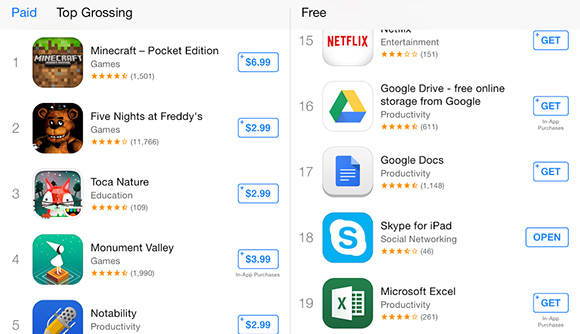
Apple drops the “FREE” button of App Store apps and games

Apple dropped the “free” moniker from the apps and games in the App Store. Effective immediately, the “FREE” button on the apps and games that don’t require payment will make way to a “GET” replacement. The move acknowledges the in-app purchases that many of the free apps and games often contain. Of course, the button applies to the content that is completely free as well. Apple is the latest industry heavyweight to react to criticism to the free-to-play business model with in-app purchases, especially by regulators in the European Union. Critics have pointed that the aforementioned content delivery method often forces players into spending money in order to enjoy proper app or game experience. The free-to-play business model is the current standard on both iOS and Android. The setup is responsible for 92% of all revenue on iOS and 98% of the same on Android. Curiously, most of the revenue comes from high spending users, whose money essentially provides for the experience of those who are not willing to part with any money.

Friday, September 26, 2014

Apple iPhone 6 review


Looking at specs alone, it’s a miracle Apple sells any iPhones.


Wave after wave of Samsungs, Sonys, LGs and HTCs have surfed on to shelves and into our hearts, each toting a bigger screen than last year’s model.

Not only that but these Androids have got bigger and better in every other way too. BIGGER cameras! FASTER processors! LONGER-lasting batteries! 

Meanwhile Apple has stubbornly refused to enter the smartphone arms race, hopping from a 3.5in screen to the 4in iPhone 5 and staying there for the 5s. Until now.

Enter the iPhone 6 with its 4.7in screen, A8 brain, iOS 8, NFC and bigger battery. Finally, Apple has an iPhone to compete on specs. And industrial design. And apps. And ecosystem.

It promises to be the best iPhone ever. So let’s find out if the reality lives up to the dream.

MAKEOVER TIME


Predicting Apple can be a risky business, but so far it’s followed a regular approach to design updates: we've had them every two years from the iPhone 3G onwards.

So, after last year’s iPhone 5s, we expected to get something wholly different this time around. And different is what we got.

Obviously the increased screen size is the main change, but it's far from the only visual difference. Like the HTC One (M8), the iPhone 6 has all-metal back with curved edges front and back rather than the flat, 90-degree edges on the 5s. The result is a phone that’s super-smooth in the hand with the joins between glossy screen and matte back almost unnoticable as you hold it.

And you’ll want to hold it – it feels amazing.

The curves make it superbly comfortable in use despite its increased size, while its thin profile also helps; it’s just 6.9mm thick, so substantially skinnier than the 7.5mm 5s. 

On the downside, the camera lens does now protrude from the phone’s case, which may not please everyone, while the distinctive light-coloured lines on the back at top and bottom won't be to all tastes either. The latter, at least, are present for practical as well as aesthetic reasons: with a metal-backed phone it’s hard to scoot the signal in and out, and the flush rubberised lines sort this. Certainly call quality on the iPhone 6 is strong and reliable. 

Overall, it's a beautifully built bit of kit. Where the Samsung Galaxy S5 and LG G3 have to make do with plastic shells - albeit metal-style plastic in the case of the latter - the iPhone 6 feels wholly premium. Only the M8 really runs it close, and that's a far bigger handset. Every iPhone since the 4 has been a thing of beauty, and the 6 is no exception.

A SCREEN DREAM?


The iPhone 6's headline feature is its 4.7in display. And with good reason: Apple had only ever upped its screen size once before, and that from 3.5in to 4in. But let's not get carried away here - by anyone else's standards, 4.7in is not a huge screen. The Sony Xperia Z3 Compact - note the word 'Compact' - is only a smidgeon smaller at 4.6in. Compared to the Samsung Galaxy S5, LG G3 and Sony Xperia Z3, the iPhone remains a pixie in a land of Android ogres.

For many people, 4.7in will be the ideal size: big enough to offer a better viewing and gaming experience, without being so big that you can't use it properly. Of course none of that matters if the quality isn't there too.

Fortunately, it is. 

The iPhone 6 is no match in screen resolution terms when compared to the G3 (534 pixels per inch) and Galaxy S5 (432ppi). Apple’s screen has just 326ppi, the same as the iPhone 5s. But stats aren’t the whole story and one glance at the iPhone 6 confirms this.

The Samsung Galaxy S5 has arguably the best screen on the market: rich, vibrant and unbelievably detailed, although the LG G3 runs it very close thanks to the extra pixels on its 2K display. And the iPhone 6 deserves to sit in that exalted company.

It’s lower-resolution than its rivals, but more than dense enough to look glorious. It also lacks the occasionally over-saturated look of the S5; the Samsung display, though unequivocally beautiful, can still tend to the garish. As far as the LG goes, those extra pixels only really make themselves known when you’re reading the tiniest of writing. 

However we'd be lying if we said that we hadn't hoped for more. The 6 Plus has a full HD 1080p screen, as does almost every one of the iPhone 6's main rivals. While the 6's display is easily one of the best 720p efforts we've used, the differences between it and a full HD screen are visible if you look for them.

However, for day-to-day use, there’s a limit to what you can see - or at least to what matters. And in those terms, the iPhone 6 is as good as its keenest rivals. Plus, it’s just right there: the display seems so pressed up against the glass it’s like you’re making direct contact with the pixels.

CAMERA TWEAKS


As the millions of sepia-toned hipster-food-photos posted hourly to Instagram prove, the camera is one of the most important things on any phone. So you might have expected Apple to want to match the 16MP sensor of the Galaxy S5 or the 20.7MP on Sony’s Xperia Z2 and Z3. But no, it’s stuck with eight megapixels. Eight.


Fortunately for Apple, the combination of a good lens, advanced image processing and sublimely simple camera controls in previous iPhones has served it very well. Plus, there's more to a good camera than lots of pixels - after all, the HTC One (M8) takes great shots with a mere 4MP sensor.

Part of the M8's success is that although it uses fewer pixels, they're individually bigger than those on most rivals at around 2 microns. The iPhone can’t match that, but at 1.5 microns, the Apple pixels are bigger than those on the Samsung Galaxy S5 (1.12 microns).

Anyway, that's the specs out of the way, let's get back to the real world...

Innovations this time around include Focus Pixels. These are called phase detection pixels by other manufacturers and a couple of rival handsets share this feature, notably the Galaxy S5. Phase detection is faster than the more commonly used contrast detection and means nippier autofocus - which in turn should mean snappier snaps with greater sharpness. Last year’s iPhone 5s took pictures with no discernible delay anyway, but the iPhone 6 sure is fast. Quality-wise, there's not a huge amount of difference from the 5s - which means it's still one of the best out there.

Where Apple’s camera is consistently better than rivals is in its superbly simple ease of use. No white balance to adjust, no extra granular controls to fiddle with. Now, though, you can deliberately over- or under-expose shots. But don't fret that this'll be an unwelcome distraction from the point-and- shoot ethos. In fact, it’s wholly intuitive: press on the screen until the yellow exposure box appears. Next to it is a little sun icon with a line through it. As you draw your finger up and down it shows you how dark or light the final pic will be. Easy as pie.

Video recording is also improved, with HD filming at 60 frames per second and enhanced slo-mo (now double the frame rate of 240 per second). But there’s no 4K video as found on some rivals. Apple’s skill has rarely been to be first, so we're not exactly surprised as its absence. Still, it would have been a nice thing to have. Quality-wise, footage is smooth and looks striking.

iPhone 6 tech specs


Screen: 4.7in 720x1334 IPS LCD (326ppi)
Processor: 1.4GHz Apple A8 processor
RAM: (unspecified)
OS: iOS 8
Storage: 16/64/128GB
Battery: (unspecified)
Camera: 8MP 1080p@60fps, 720p@240fps rear, 1.2MP 720p front
Connectivity: Wi-Fi 802.11 a/b/g/n/ac, Bluetooth 4.0, NFC (Apple Pay only), 3G/4G
Dimensions: 138x67x6.9mm
Weight: 129g

MORE POWER


Performance is always a tricky thing to judge on iPhones. Look at the stats alone and most high-end Androids leave it in the dust. But use one, and it'll often feel like the fastest thing since Usain Bolt's sliced bread. The iPhone 6 is no different.

The new iPhone has an improved processor, namely the A8, and whizzes through tasks without the slightest of pauses. The previous A7 was shockingly fast thanks in part to the new 64-bit architecture that arrived on that chip, and that's obviously retained here. And while the new model doesn’t feel any faster, it has more pixels to move around and is probably doing more in the background to boot. 

There’s also a new motion co-processor, the M8, not to be confused with HTC’s flagship. The co-processor now measures altitude thanks to a built-in barometer, so it can monitor when you are climbing or descending stairs. Health apps will make much of this and Apple’s own Health app has a dashboard to record your steps, cycling and more, made possible by the new hardware.

A BIGGER BATTERY


Fact: most smartphones have terrible battery life. Just try leaving home in the morning without having charged up overnight. And the more you use your phone, the more quickly the battery drains. 

It's a recipe for disaster, and one from which previous iPhones have hardly been immune. The iPhone 5s lasted a Standard Smartphone Day (SSD) - by which we mean you could just about get away with only having to charging it nightly, so long as you didn't really hammer it during the day. Otherwise, you'll have wanted that spare charger at work.

Happily, the iPhone 6 just goes on and on. In regular use, the phone performed for a full day and well into a second – a leap forward compared to the iPhone 5s. Additionally, iOS 8 gives you handy warnings about apps which are constantly making data connections, so you can turn the beggars off.

We'll be doing a full battery run-down test soon, at which point we'll compare it to flagship Androids such as the LG G3, but for now we'll just say that it lasts longer than any other iPhone.

FEATURES


The new hardware is faster and more powerful, some of it to service the bigger screen and updated iOS 8 operating software. Eventually, it will lead to more sparkly games, faster and more powerful apps. Already, Apple has added its own Health app, of which more below.

Sadly, some of the newest, spangliest of features on the iPhone can’t be reviewed yet in the UK. One of the most striking is Apple Pay, which uses a combo of the Touch ID fingerprint sensor and a newly arrived NFC chip in the phone to turn the handset into a contactless credit card. Demonstrations we saw last week in Cupertino were certainly seamless and speedy, so assuming Apple is able to do the deals with UK banks and credit card companies that it’s done in the States, this could be a very big deal.

Of course, Android phones have had similar features for some time. EE customers have the Cash On Tap app on various phones, including the S5, which turns the phone into a virtual Oyster card, for instance. But NFC hasn’t really taken off yet. Apple Pay could change this.

Other phones have fingerprint sensors, too, but the Apple model is superb not least because it’s effort-free. By resting your thumb or finger on the home button as you would to wake the phone, the Touch ID feature is invoked. The Samsung Galaxy S5 by contrast requires a swiping movement to make it work - definitely a little less intuitive.

Similarly, there's VoLTE - that’s Voice over LTE - which promises to deliver voice calls through 4G data; handy if your 2G signal is weak at home, say. It needs both handsets to be on VoLTE and for networks to play ball. EE is involved but the service hasn’t been rolled out yet. The feature is partly made possible by a faster LTE chip which can deliver up to 150Mbps downloads, when the networks can match this.

IOS 8


The iPhone 6 arrives running Apple's new iOS 8, available from today on all iPhones from the 4s onwards in addition to various iPads and iPod touch models

It looks mostly like last year’s radically restyled iOS 7, but if 7 was all about design changes, 8 is all about openness, customisation and communication. 

There are immediate benefits to apps such as Messages, which will now let you easily send voice files, photos and videos at the touch of a button in the text area. And below that you'll find the all-new predictive keyboard, which aims to guess which word you’re about to type before you’ve keyed in the first letter. This is splendid and works well. Third-party companies such as the excellent Swiftkey are also now able to produce their own keyboards for the iPhone – something Apple hadn’t permitted until now.

Bigger improvements still include Handoff, which enables you to start tapping an email out on your iPhone keyboard and then carry it on seamlessly on a Mac using the latest Yosemite software. This also means that when a phone call comes in you can answer it on your Mac or on another Apple device – handy if your phone is snuggling on the windowsill where the mobile phone signal is strongest while you’re ensconced next to the TV in the other room. We weren't able to test these features, as Yosemite is still in beta release mode, but we'll update this review as soon as we're able.

Most importantly of all, there’s the new Health app, which allows other apps to contribute to the fitness monitoring that Health collates. This is another feature that’s in its early stages and it’s going to be interesting to see what happens if you have multiple fitness devices which report different step counts, for example. Apple stresses that each app only takes part if you give it permission.

Still, the basic app looks pretty neat, with the restrained, classy styling you’d expect, though Samsung's S Health app looks spiffy, too and both are outclassed by the LifeLog software on Sony’s phones.

And finally there’s iCloud Drive, which brings Apple up to date with the document-sharing capabilities other platforms already boast. Just as with iCloud, which syncs your contacts, calendars and more across multiple devices, iCloud Drive saves documents across all of your Apple gadgets and on icloud.com.

VERDICT


In order to really judge the iPhone 6 you first have to consider what it's not.

It's not a mega-screened wannabe phablet. It's not a 2K-display-packing pixel king. It's not the most powerful phone ever, it's not the most megapixelly phone ever, it's not even the longest-lastingest phone ever. The best Androids still beat it on all these counts.

But that's just specs. What it is, is the best iPhone ever.

It's a real looker, with an amazingly slim and deeply attractive build. It feels lovely in the hand, despite the extra size. It has the best screen of any iPhone - big enough to be useful, with gorgeous colours. It's the most powerful iPhone ever, even if in use all you'll know is that it feels very fast. It has the best battery of any iPhone ever, lasting well into a second day. And it also packs some of Apple's biggest software innovations in years, although we'll have to wait for the likes of Apple Pay to make their way over here.

The iPhone 5s, for all its qualities, didn't do enough to put Apple back on top. It just lagged too far behind its Android rivals in key areas. 

But the iPhone 6, with its combination of fresh new form factor, the upcoming links to desktop via Yosemite and the promise of Apple Pay, might just do the trick.

Tuesday, September 9, 2014

The iPhone 6 is here with a larger display and a super-thin profile


Almost exactly 365 days after Apple removed the veil masking its now ex-flagship, the iPhone 5s, the company has, like clockwork, just announced its successor -- the iPhone 6. In many ways the new iPhone serves as a reminder that change is inevitable, even for a seemingly monolithic company like Apple.

Indeed, the iPhone 6 opens up a new page in Apple's relatively short history of building smartphones. Perhaps most notably, the Cupertino-based giant is changing its ways in both the hardware and software categories, with a larger-than-ever flagship, and a more open, developer-friendly iOS 8. And while we're certain that, in due time, the industry as a whole will dissect the new iPhone and its updated software in a leave-no-stone-unturned type fashion, right now is the time to focus on the basic building blocks of the latest iPhone.

Design and Display

Ladies and gentlemen -- the rumors were true, and the dummies were real. The iPhone 6 branches out from the existing Apple design language, and though the elements that make up the entirety of its construction are not altogether new, the latest iPhone is its own thing. In fact, if you take a step back, you'll realize that this is the second major redesign of the iPhone family -- the first one being the transition from the rounded, pill-shaped iPhones before the iPhone 4, which, in turn, introduced a more rectangular narrative. 


So what does the above mean? We've found that a good (and factually-correct) way to think about the iPhone 6's design is to envision a mash-up between various iPod Touch and iPad mini motifs. That alone will give you a mental picture that will likely be closer to the real thing than apart. Of course, when thinking about the new iPhone, it's also important to remember that we're now talking about a significantly larger device, with a 4.7-inch screen. But while the width, height and weight of the device shot up (138.1 x 67 mm, 129 g / 5.44 x 2.64 in, 4.55 oz), thickness shrunk down to 6.9 mm (0.27 in), making for a very thin phone overall.

Going back to the display, the 4.7-inch IPS panel has a pixel resolution of 750 x 1334, giving it a pixel density of 326 ppi, in line with Apple's "retina display" philosophy and equal to what the iPhone 5s has going on. According to the company, the screen can crank its brightness to up to 500 nits, and sports an oleophobic coating that will keep the nastiest of fingerprint smudges away.

The silicon inside


The GPU of the iPhone 6 is 84 times faster than the one on the original iPhone, while processing power has shot up more than 50 times

With the iPhone 6, Apple is making clear its ambition to continue designing its own CPUs, and the new quad-core A8 system-on-chip is as much a proof as one would need. In reality, the home-grown A8 is the third custom-designed Apple chip based on ARM architecture, but only the second based on ARMv8, signifying that we're again looking at 64-bit silicon. What's new here includes a smaller, 20-nm chipset with 2 billion transistors, all the while being 13% smaller than the A7 silicon on the iPhone 5s. Perhaps most importantly, however, the new chip's two cores will be 25% faster and its GPU will perform 50% better in comparison with the iPhone 6's predecessor.

The new SoC also comes with support for over 20 LTE bands, which is more than any other phone right now. What's more, the iPhone 6 will also support LTE roaming, Voice Over LTE, and Wi-Fi calling. Speaking of Wi-Fi, Apple is moving to the 802.11ac standard, promising up to three times faster speeds when connected to a wireless network. 

More power and features are, of course, only one side to the coin – efficiency is becoming increasingly important. While Apple is yet to reveal the exact capacity of the batter of the iPhone 6, the company did say that the new iPhone will offer up to 4 hours extra in 3G talk time, 10 more hours of audio listening, and 1 extra hour of video playback over the iPhone 5s.

An improved iSight camera


As we ourselves suspected, Apple is once again refusing to be dragged into an arms-race in terms of camera megapixels, so the iPhone 6 will stick to an 8-megapixel rear camera with a True Tone flash. The unit has 1.5µm pixels, and its five-element lens' aperture sits at f/2.2.

Apple also claims that, because the iPhone 6's camera makes use of phase focus, the time needed for the unit to focus will be cut in half. The Cupertino-based company also revealed that the improved snapper can shoot slow-moes in 720p resolution at the whopping 240 frames per second in case you feel like 120 frames just weren't enough. Unfortunately, the unit on board won't have an OIS gizmo (Optical Image Stabilization) as was rumored, and will instead use a software implementation (digital image stabilization) to compensate for hand shake during video capture.

As for the camera at the front, we're looking at a "new" FaceTime HD (720p) camera with an "all-new" sensor with f/2.2 lens. According to Apple, the new config will allow the camera to collect 81% more light for brighter selfies.

Apple Pay: wireless payments thanks to NFC

One of the biggest reveals Apple had in store for its presentation was the announcement of the company's Apple Pay service. The new feature will, together with PassBook, attempt to dismantle the status-quo, and try and usher us all into a new era of digital payments. 

The way Apple Pay works is simple – the iPhone 6 has an NFC chip, supposedly nestled at the top of the phone, which will allow you to pay at a gigantic number of retail locations, including Starbucks, Subway, McDonalds, Macy's, Bloomingdales, Staples, Whole Food Market, and Disney and Apple stores. To achieve that, Apple has also partnered with Visa, Amex, MasterCard, and American Express, the combination of which processes over 80% of all transactions made in the States.

Of course, other than promoting Apple Pay as an easier-to-use alternative to the traditional routine of whipping your credit card, the Cupertino-based giant claims that its service is far more secure, and essentially makes it impossible for fraudsters to... well, rob you. The way that works is that instead of simply stockpiling on your credit card info and then share it with merchants when transactions occur, Apple Pay will instead generate one-time-only, dynamic security tokens. In other words, as soon as a transaction is complete, even if someone was to somehow get their hands on said token, it'll be less than useless for them.

iOS 8, now prime time-ready


Unlike iOS 7, which was mostly a design-centric update, iOS 8 will instead focus on functionality additions and keep the visuals of its predecessor. Indeed, Apple is changing quite a few things up, and is actually opening up its traditionally sealed-off platform. Let's talk specifics.

The notification bar is now more functional than ever

Perhaps one of the major improvements in iOS 8 concerns the notification bar. For example, in iOS 8, you'll be able to 'action' those right on the spot, meaning that you can simply swipe on a new notifications and perform a number of actions, like reply to a text message or like a new Facebook post. Best of all, the ability to directly interact with notifications won't be limited to the notification bar -- you can action stuff right from the lockscreen.

Perhaps as importantly, Apple is finally adding widget support in iOS 8, though these will be housed within the Today tab in the bar itself, and not on the homescreen (à la Android). During its presentation at the WWDC back in June, Apple demo'd a few possibilities for widgets, including ones for keeping track of game scores or even bid on items on eBay in real time. Obviously, more apps will follow suit, so the sky is the limit.

Apple is opening up

The Cupertino-based company has also taken steps to improve the software keyboard (which it now calls QuickType) on iOS 8, but that's actually not the surprising part at all. The unexpected part was that, despite the seemingly non-trivial tweaks QuickType got, Apple is actually opening access to the keyboard component in iOS for the first time in history. This means that third-party developers will now be able to create custom keyboards for people that are, for whatever reason, unhappy with Apple's implementation. 


For those unwilling to move away from the company's familiar layout, there's some good news. First and foremost, the built-in keyboard will now offer predictive next word suggestions, kind of alike to most Android keyboards on the market right now. Where Apple's solution may win out, however, is the promise that QuickType will eventually learn enough about your contacts and start differentiating between formal and informal contacts and change the entire predictive vocabulary set to better fit your needs. What that means in practice is simple: As soon as QuickType is certain that John or Jenny are your best pals, and Mark is your boss, it'll automatically cycle between a formal and informal vocabulary.

On a different, but related to the theme note, Apple is also, surprisingly, opening up access to the Touch ID fingerprint sensors for third-party developers for use in their apps. Once again, all the biometric information will be physically stored on the chip inside the iPhone 6, and even though apps can now make use of Touch ID, they still won't have access to your fingerprint. 

The improved Siri and the new Health app

Also receiving some much-needed love is Siri, Apple's virtual assistant. The improved Siri will now recognize songs, make iTunes purchases, and even control smart household gadgets that make use of the new HomeKit API. What's more, Siri now understands nearly two dozen additional languages, and can be summoned by simply saying "Hey, Siri!", though it remains to be seen if that iPhone 6 will allow for this when not inside the Siri interface and off the charger.

Price and release date

The 16GB version of the iPhone 6 will cost $199 on a 2-year contract, while the 64GB and 128GB versions will go for $299 and $399, respectively. You read that right -- Apple will replace the 32GB slot with a 64GB version, and is also making a 128GB model available for the first time.


Pre-orders start September 12th and units will start shipping out of Apple's warehouses a week later, on September 19th. The first batch of iPhone 6s will sell in the USA, Canada, the UK, France, Germany, Australia, Hong Kong, Singapore, and Japan. By the end of 2014, some 115 countries worldwide will have access to the iPhone 6.